Windchill Stickiness


While working on Windchill 9.1, many times we come across situations where the first and second level navigation (tabs) are not appropriate and pointing to unexpected tab selections. Also some times on login by a user, the user is navigating to a URL all the times even you tried to change the URL like users are not able to access tabs because the stickiness context is wrong.
Examples: Clicking on Library tab leads to the Product tab.
This is because of stickiness in the Windchill. Such issues can be resolved by clearing the stickiness.
How to clear stickiness?
1.       Go to below UR
2.       The page will show you
a.    Clear sticky info for all tabs
b.   All first level navigation tab names with the link to clear respective stickiness
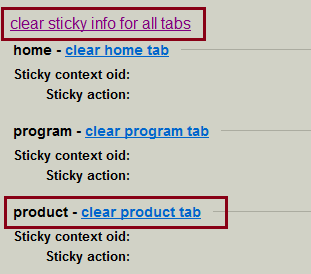
3.       Now you can clear all tabs stickiness or tab based by clicking on the relevant links
4.       To ensure that all client stickiness is removed, delete all your temporary internet files (usually in the Tools menu), close all browser windows, and restart the browser.

Windchill Command Line Utility Skeleton

In the last topic Windchill Remote Method Server Access API we saw how we can use RemoteMethodServer to invoke method server code remotely. Even though there are plenty of utilities available in Windchill OOTB, we came across various scenarios where we need to write our own custom utilities.
In this post I am trying to share the Windchill command line utility skeleton which uses RemoteMethodServer.
package com.blogspot.maheshmhetre.windchill.utilities;

import java.lang.reflect.InvocationTargetException;
import java.rmi.RemoteException;

import wt.method.RemoteAccess;
import wt.method.RemoteMethodServer;
import wt.session.SessionHelper;
import wt.util.WTException;

public class WindchillCustomUtilitySkeleton {

 //START of inner class - Server
 public static class Server implements RemoteAccess {
  
  public static void methodOne(String param1, String param2) {
   try {
    //Get login credentials
    SessionHelper.manager.getPrincipal();
    
    //Call core processing method
    WindchillCustomUtilitySkeleton utility = new WindchillCustomUtilitySkeleton(); 
    utility.doOperation(param1, param2);
    
   } catch (Exception e) {
    e.printStackTrace();
   }
   
   return;
  }
 } //END of inner class - Server

 private void doOperation(String param1, String param2) throws WTException{
  //TODO execute your utility logic
  System.out.println("This sysout will be available in method server log.");
 }
 
 public static void main(String[] args) {
  //TODO get utility input parameters
  //TODO basic validation

  System.out.println("This sysout will be available on console from where the utility is running.");
  //prepare input params
  //data types will depends on your method parameters and can be any valid object type
  Class argTypes[] = {String.class, String.class};//add all remote method parameter data types
  Object argValues[] = {"param_1_value", "param_2_value"};//respective data value
  
  //call remote method - pass inner class name, method name, arg types and arg values
  try {
   RemoteMethodServer.getDefault().invoke("methodOne", 
     "com.blogspot.maheshmhetre.windchill.utilities.WindchillCustomUtilitySkeleton$Server",
     null, argTypes, argValues);
  } catch (RemoteException e) {
   e.printStackTrace();
  } catch (InvocationTargetException e) {
   e.printStackTrace();
  }

  Runtime.getRuntime().exit(0);
 }
}

Please share your thoughts to improve this skeleton.

Windchill Remote Method Server Access API


To invoke Windchill server side code from outside method server, we need to use RMI calls. Windchill provides mechanism to do this by using RemoteMethodServer class.

The method signature
RemoteMethodServer.getDefault().invoke(String methodName, String className, Object obj, Class[] paramClassTypeArray, Objet[] paramValuesArray);

The core code to invoke remote method is
RemoteMethodServer remotemethodserver = RemoteMethodServer.getDefault();
remotemethodserver.setUserName(userName);
remotemethodserver.setPassword(Password);

Class argTypes[] = {String.class, String.class};//add all remote method parameter data types
Object argValues[] = {"param_1_value", "param_2_value"};//respective data value

Object returnObj = remotemethodserver.invoke(methodName, className, null, argTypes, argValues);

If you want the user who is executing the code should provide username and password explicitly using basic authentication handled by framework, skip the username and password set to RemoteMethodServer and user SessionHelper.manager.getPrincipal(); Adding this will give popup for username and password if not available.
Keep in mind that there may be an issue if you are executing the remote access code from some external terminal like putty session. The popup will not work by default and need some additional settings.

In the next post we will see a command line utility skeleton which uses RemoteMethodServer API.

How package names to be formed?

Many times I came across Java developers who are not clear how the package names to be formed. Here I am trying to explain on how package names to be formed.

Generally package name start with reverse domain name resolution and later the application and module name and then finally the area you are working
The package name can be formed as below
<TLD>.<org/domain name>.<application name>.<module name>.<sub-module name>.<working area>.<more down level if needed>

Consider below is the scenario
  • Organization domain name: www.myOrg.com
  • Application Name: Windchill
  • Module Name: Lifecycle
  • Sub Module Name: Assignment
  • Working Area: Participants
Following the above pattern my package name will be
com.myorg.windchill.lifecycle.assignment.participants

I always try emphasis on the deep level or extended package name so that the package will have only specific/relevant classes available. Please try to avoid putting many class in a single package and try to put them into very specific package.

Hope this is a useful information. 

Windchill OOTB Utility - "Which"

While working on Windchill customization, I came across a scenario where want know the class location but no idea where that class resides. I tried to find in eclipse as well but no luck as I can’t add all Windchill jars in the eclipse.
In this case I can use the Windchill OOTB utility “Which” to lookup the class/file path in the Windchill.
This utility lookups all the occurrences of the provided file in the classpath which includes the jars files as well.

This is a command line utility. The command is as below
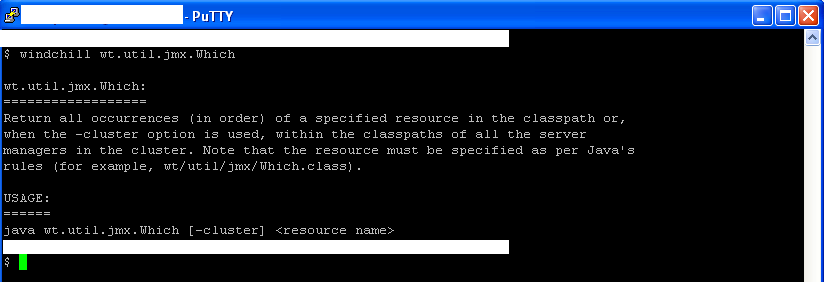
windchill wt.util.jmx.Which


Utility usage:


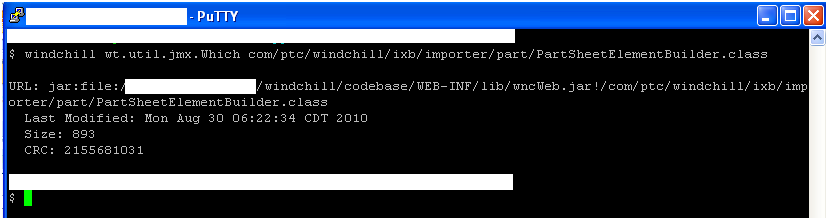
Example:


Running the above command, we get a result says the class file present in /Windchill_9.1/Windchill/codebase/WEB-INF/lib/wncWeb.jar file.
If the same file present at multiple location, then we utility returns all possible locations of the file.

Windchill-Eclipse : Hot Code Replace

In the previous posts Windchill-Eclipse Project Setup and Windchill Method Server Debugging we discussed the basic Windchill development setup. Now it’s time to speed up the development. In this post we are going to add “Hot Code Replace” functionality in our Windchill development environment. The is the real development nitro booster.

What is hot code replace? – Ref: eclipse.org
Hot code replace (HCR) is a debugging technique whereby the Eclipse Java debugger transmits new class files over the debugging channel to another JVM. In the case of Eclipse development, this also applies to the VM that runs the runtime workbench. The idea is that you can start a debugging session on a given runtime workbench and change a Java file in your development workbench, and the debugger will replace the code in the receiving VM while it is running. No restart is required, hence the reference to "hot".

In our Windchill development environment setup, we are going to add eclipse project workspace into Windchill classpath. So when you will start eclipse method server debugging and in between debugging mode if you modify any class, the updated class code will get execute and most importantly without class compile or method server restart.
So we saved a lot time in sysouts, class compilation and method server restart

Add hot code replace in Windchill development environment setup:

  1. Take backup of /codebase/wt.properties.xconf
  2. In /codebase/wt.properties.xconf edit "wt.java.classpath" property value to add eclipse project workspace path. In the property value you need to add your eclipse project workspace bin folder path.
e.g. My eclipse project workspace bin folder path is /opt/eclipseworkspace/Windchill/bin. Replace the directory separator by Windchill directory separator variable $(dir.sep). Now my updated path will be $(dir.sep)opt$(dir.sep)eclipseworkspace$(dir.sep)Windchill$(dir.sep)bin. Add this value in the beginning of property value with the Windchill classpath separator variable $(path.sep).
The updated property value will be like as below ($(path.sep))

Property name="wt.java.classpath" multivalued="$(path.sep)" default="$(dir.sep)opt$(dir.sep)eclipseworkspace$(dir.sep)Windchill$(dir.sep)bin$(path.sep)$(wt.home)$(dir.sep)codebase$(path.sep)$LIB(wt.webinf.lib)$(path.sep) --- and original

  1. Run xconfmanager utility to propagate the xconf value
  2. Restart method server

Note:

  1. Works in eclipse debug mode only
  2. Make sure that Project -> Build Automatically is checked (enabled)
  3. Hot code replace works effectively for method level code changes but some time fails for class level changes like adding method/variable, imports, etc

Now start Windchill development without sysouts and method server restarts. So shift the development gear and go bhuuuummmmmmmm

To know more about hot code replace visit http://wiki.eclipse.org/FAQ_What_is_hot_code_replace%3F


Windchill Method Server Debugging

In the last topic Windchill-Eclipse Project Setup we discussed how to setup a Windchill development environment setup in Eclipse.
Now we are adding one more thing in our development environment which will help in debugging Windchill method server in eclipse. Below settings are specific to Windchill 9.1 release.

  1. Set method server running port
            Take backup of /codebase/wt.properties.xconf
In /codebase/wt.properties.xconf edit below property to add method server port and java memory allocations
name="wt.manager.cmd.MethodServer.platform.java.args" default="$(wt.manager.cmd.MethodServer.nonibm.java.args)"

This property pointing to different property again so ultimately we need change
name="wt.manager.cmd.MethodServer.nonibm.java.args" default="-XX:PermSize=72m -XX:MaxPermSize=200m"
Note: The “default” value can be different in your environment.

Change the default value as highlighted below
name="wt.manager.cmd.MethodServer.nonibm.java.args" default="-XX:PermSize=72m -XX:MaxPermSize=200m -Xdebug -Xnoagent -Xrunjdwp:transport=dt_socket, server=y, suspend=n, address=7777 -Djava.compiler=NONE"
  1. Run xconfmanager utility
          Run xconfmanager utility to propagate the xconf value
  1. Restart method server
Once you restart the method server, the method server will start running on port (7777) specified in the property above.
Note: You can check the method server running port in the method server logs. The very first line will show the method server running port.
  1. Eclipse debugging setup
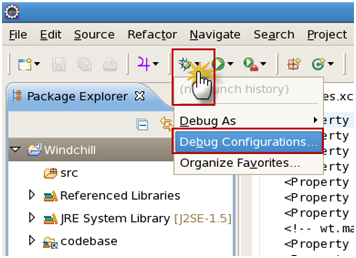
    1. Click on Debug -> Debug configurations
   
    1. Navigate to “Remote Java Application” -> “New”
    2. Provide Name, Host and Port. Click on “Apply”.
    3. Click on “Debug”.
  1. If all the properties and setting specified are correct, you will see the eclipse started in debug mode (Note: Method server must be up and running)
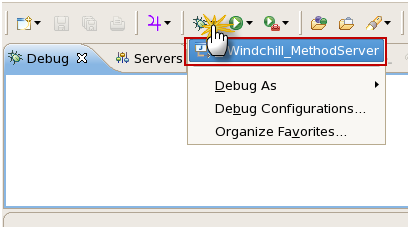
  2. Later on you can start method server debugging from Debug drop down directly by selecting your newly created “Remote Java Application” under “Debug”
   

Now you can do Windchill method server debugging as normal as Java project in eclipse.

Windchill-Eclipse Project Setup

  • Open eclipse and select appropriate workspace
  • Create new Java project
    • Go to File -> New -> Project
    • Select “Java Project” and click on Next
    • Enter project name. Select appropriate JDK version depends on the Windchill version you are working on. Click on Finish.
    • The project is created with src folder
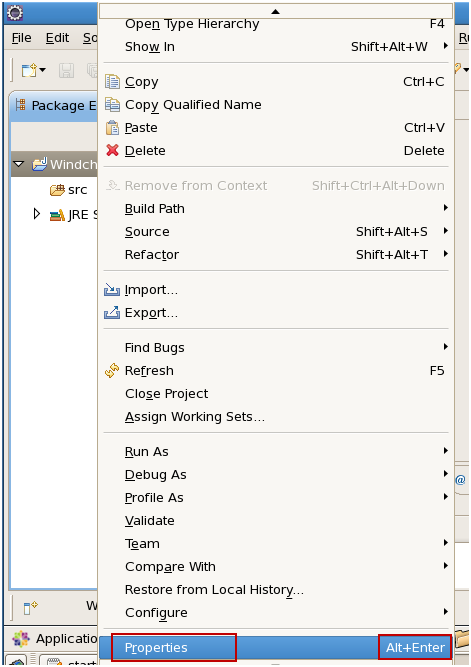
  • Right click on project and click on Properties.
    • Note: Navigating to project Properties needed many times. The shortcut is select project and use “Alt + Enter”. This will navigate you to directly project properties.
  • Navigate to Java Compiler -> Building -> Output folder
    • Uncheck the “Scrub output folders when cleaning projects” and click on OK
  • Click on Yes. This will rebuild the project to take the building setting in effect.
  • Add OOTB Windchill JARs and codebase folder in project workspace
    • Navigate to project properties.

Hope you used shortcut (Alt + Enter) to navigate to project properties

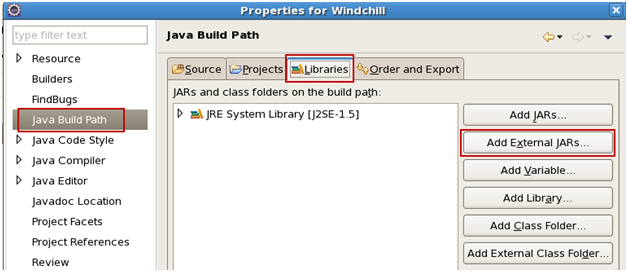
    • Navigate to Java Build Path -> Libraries
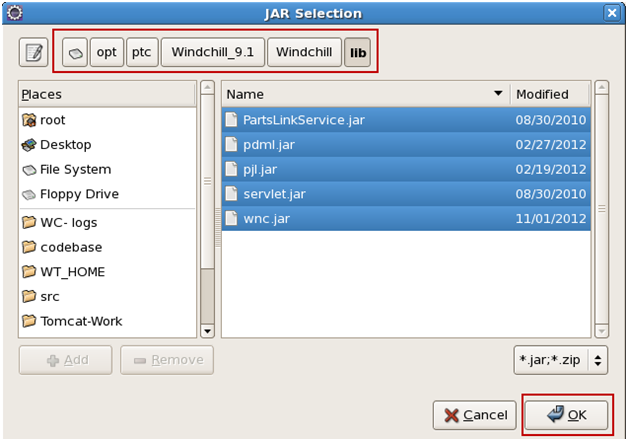
    • Click on “Add External Jars”. This will open a new selection window. Navigate to Windchill_Home/lib and select all available libraries in this folder and click OK.
    • Click on “Add External Jars”. This will open a new selection window. Navigate to Windchill_Home/codevase/lib and select all available libraries in this folder and click OK.
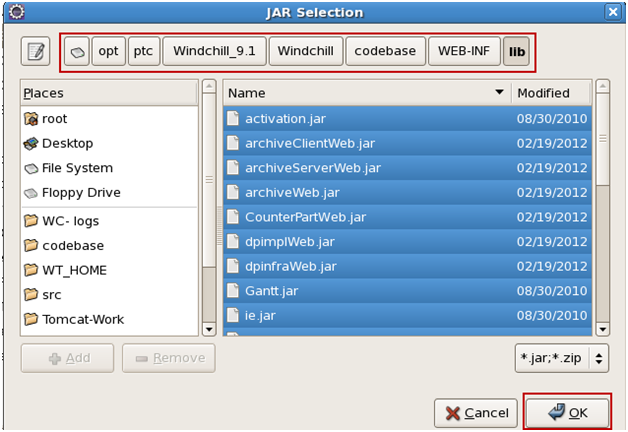
    • Click on “Add External Jars”. This will open a new selection window. Navigate to Windchill_Home/codebase/WEB-INF/lib and select all available libraries in this folder and click OK.
    • Click on “Add Class Folder”
    • Click on “Create New Folder”
    • Click on “Advanced”
    • Select the checkbox – “Link to folder in the file system”. Click on “Browse”.
    • Navigate to Windchill_Home and select “codebase”
    • Click OK. This will take some time to add the codebase into project workspace.
    • Verify that codebase folder is checked and click OK.
  • Setting build and class load orders
    • Select “Order and Export”
    • Select codebase folder and click on “Top”
    • Use Up/Down key to set the build order. All the source folders should have higher build order than codebase folder.
    • Verify and click OK
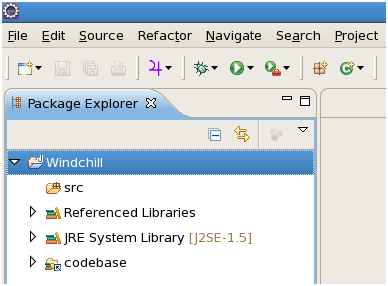
  • Final project will look as below

  • Navigate to Project menu and verify that the “Build Automatically” is checked. If not then check.

The Windchill eclipse project setup is done. Now you are set to browse the files available in workspace. E.g.
  • Browse (Ctrl + Shift + R) jsp files
  • Browse(Ctrl + Shift + R) properties files


Next topic: Windchill-Eclipse method server debugging

Windchill ... Where to Start?

Many guys who want or have to work on Windchill, the first question they usually ask is “Where to start?”.

The best training material for Windchill is PTC University courses. This is a web based training provided by PTC and need to be purchased.

As we can see, most of the companies working in Windchill are service industries. Rare to see those companies purchasing PTC University courses to train employees. Adding to this, these days the Windchill service industry following the pattern of hiring pure Java developers for Windchill customization and train them the Windchill framework. So all the responsibility goes to the senior person in the team who is most of time busy.
Now you are at dead end where we must start to explore Windchill yourself. Here are few pointers where we can start learning Windchill.

Windchill Help:
URL: http://hostname/Windchill-WHC/index.jspx
This the real material to learn the Windchill functionality. You can directly go to the home page and explore the area the you of interest. The other way is open help from the screen you are working on, this will take to the respective help topic.

Windchill Java/API Doc:
Folder: Windchill_Home/codebase/wt/clients/library/api/index.html
Web: http://hostname/Windchill/wt/clients/library/api/index.html

Windchill Examples:
Location: Windchill_Home/codebase/netmarkets/jsp/carambola/customization/examples/
Many examples found under his location.
In Windchill 10.x you can found this under Tools as well.

Top most Windchill Guides:
Windchill Customization Guide
Windchill Business Administration Guide
Windchill System Administration Guide


Resolution – ‘The Blogging’.

Hello All,

After a long time I am back to this page, feeling good.

It may be New Year, Christmas, Diwali or any special occasion, almost everybody decides some good to do in the year which we called as a ‘Year Resolution’. Even I am not escaped from this :)

So on my this birthday I opt a resolution – ‘The Blogging’.

As I am PLM professional/consultant, I decided to go with one special blogging topic which is ‘PTC Windchill’. Along with this topic, will add blogs on Java and non-technical as well. While sharing my knowledge, this will really help me to improve my skills as well.

Your love and support will keep me motivated to blog more and more.

Let’s go …